병목 지점 : 전체 시스템에서 특정 서버 자원이 한계에 도달해 전체 성능이 저하되는 구간

위 그림에서 2차선 도로 해당!
- 병목 지점의 Throughput이 곧 전체 Throughput!
- A-B 구간이 문제없어도, B-C 구간에서 Throughput이 저하되면 무용지물 (사용자 <-> 백엔드 <-> DB라 생각하면?)
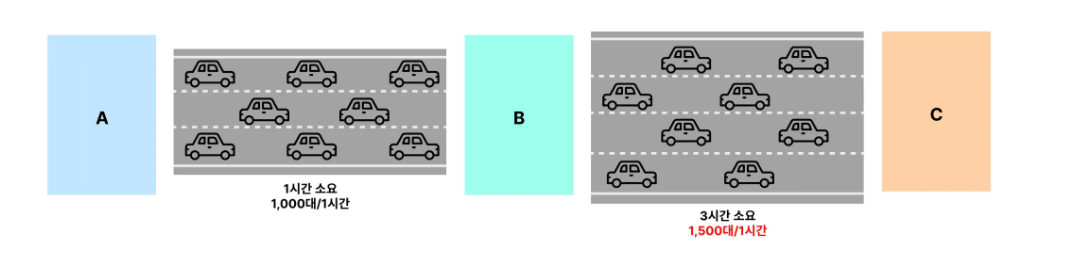
B-C 구간의 병목 지점을 해결해도, A-B 구간에서는 1000대만 지나갈 수 있기에 병목 발생!
- 병목 지점을 해소해도 다른 곳에서 새로운 병목 지점 발생한다
부하 테스트를 위해서는 목표 Throughput과 Latency를 설정해야!
- 예제에서는 2000TPS, 800ms 를 목표로 하고 잇음
- 이를 달성하기 위해서는 병목 지점 파악 후 성능 개선해야
- 달성하지 못했을 경우 다시 병목 지점 파악 후 부하 테스트 실시...
부하 테스트 시 주의점
- 적절한 부하 테스트 시간
- 최소 5분 부하테스트 진행해야 일관된 값 얻을 수 있음!
- 프로덕션 환경과 비슷하게 데이터 세팅해야
- DB는 데이터 저장 방식과 양에 따라 많은 성능 차이 발생
- ex) production은 100만 개, 테스트는 데이터가 없다면?
- 프로덕션과 분리된 환경에서 테스트하기
- 실제 서비스 성능에 악영향 줄 수 있기 때문
부하가 발생하는 병목 구간을 알기 위해서는, 각 요소 (ex) EC2, ELB, RDS, Elasticache 등) 의 CPU 와 메모리 사용량 을 보고 판단해야! << Metric 을 통해서 수치화!
백엔드 서버의 경우 Collection 을 많이 쓰지 않는다면 CPU를, ELB는 트래픽 분배 위해 CPU를, 캐시는 데이터 조회에 많이 쓰이므로 메모리 주 사용
EC2 모니터링 방법
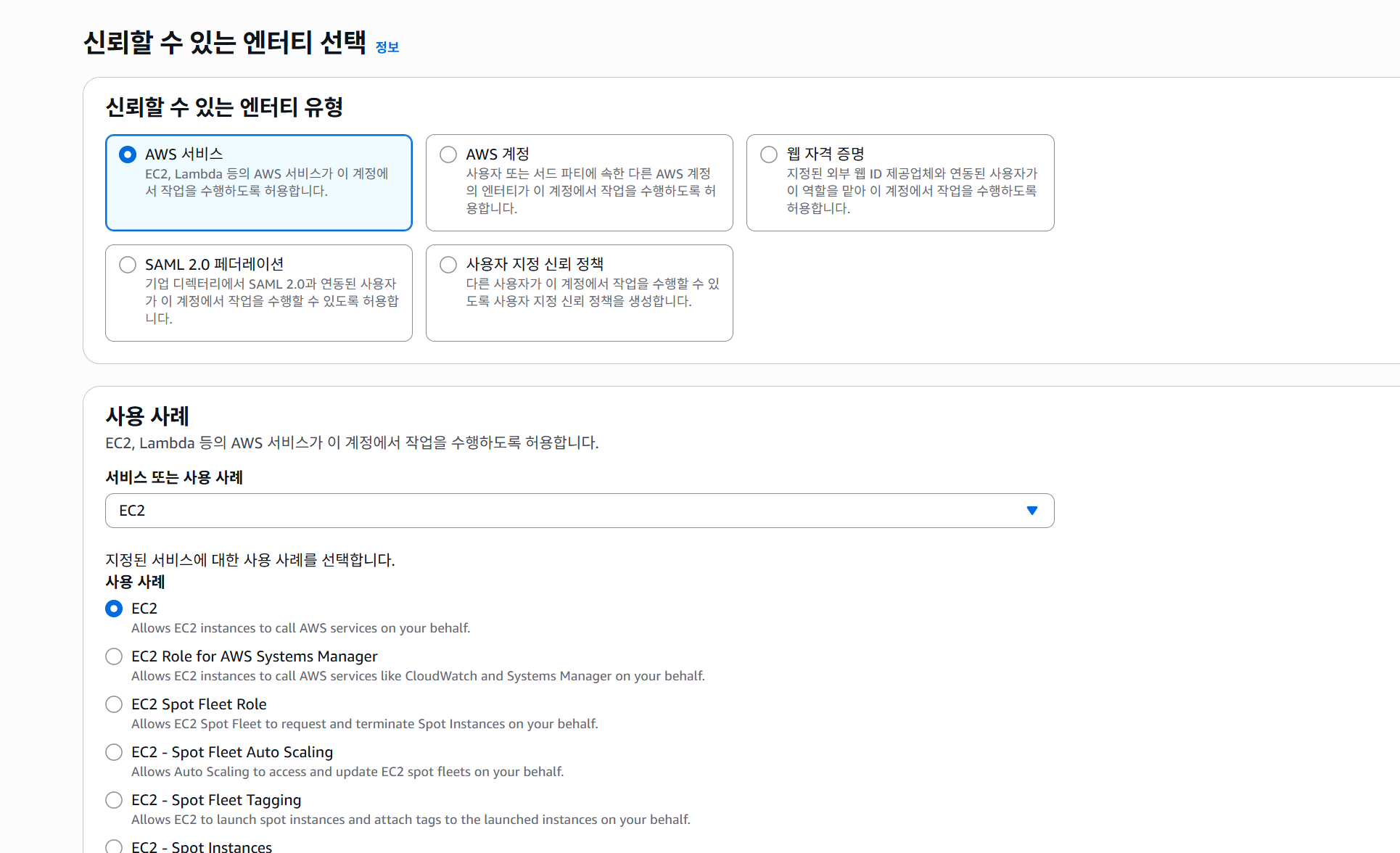
1) 권한 설정
- IAM - 역할 - 역할 생성에서 하단 EC2 선택
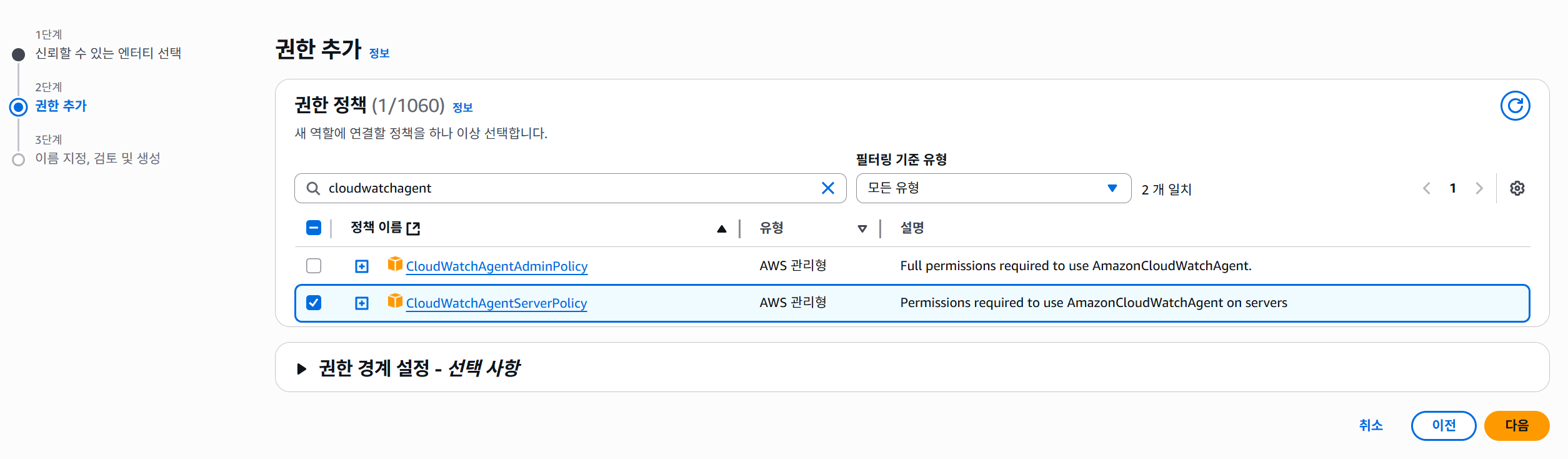
2. 권한 추가에서 'CloudWatchAgentServerPolicy' 선택 -> 이후 역할 생성 선
3. 서버 돌아가는 인스턴스에 들어가 보안 > IAM 역할 수정 선택 > IAM 역할 업데이트 선택

4. EC2 인스턴스에서 Cloudwatch Agent 설치
# Ubuntu x86-64 Cloudwatch Agent 다운로드
$ wget https://s3.amazonaws.com/amazoncloudwatch-agent/ubuntu/amd64/latest/amazon-cloudwatch-agent.deb

# 다운받은 패키지 설치
$ sudo dpkg -i -E ./amazon-cloudwatch-agent.deb
5. CloudWatch Agent 설정 파일 생성하기
sudo /opt/aws/amazon-cloudwatch-agent/bin/amazon-cloudwatch-agent-config-wizard
================================================================
= Welcome to the Amazon CloudWatch Agent Configuration Manager =
=                                                              =
= CloudWatch Agent allows you to collect metrics and logs from =
= your host and send them to CloudWatch. Additional CloudWatch =
= charges may apply.                                           =
================================================================

# 사용하고 있는 운영체제는 무엇입니까?
On which OS are you planning to use the agent?
1. linux
2. windows
3. darwin
default choice: [1]:
1

# EC2 인스턴스 환경인지? 아니면 온프레미스 환경인지?
Trying to fetch the default region based on ec2 metadata...
I! imds retry client will retry 1 timesAre you using EC2 or On-Premises hosts?
1. EC2
2. On-Premises
default choice: [1]:
1

# 리눅스에서 어떤 user가 Cloudwatch Agent를 사용할 건지?
Which user are you planning to run the agent?
1. cwagent
2. root
3. others
default choice: [1]:
2

# StatsD 데몬(애플리케이션 지표를 수집)을 사용할 건지?
Do you want to turn on StatsD daemon?
1. yes
2. no
default choice: [1]:
2

# CollectD라는 시스템 메트릭 모니터링 도구를 사용할 건지?
Do you want to monitor metrics from CollectD? WARNING: CollectD must be installed or the Agent will fail to start
1. yes
2. no
default choice: [1]:
2

# 컴퓨터(host)의 메트릭(CPU, 메모리 등)을 모니터링 할 건지?
Do you want to monitor any host metrics? e.g. CPU, memory, etc.
1. yes
2. no
default choice: [1]:
1

# 코어별로 CPU 메트릭을 모니터링 할 건지?
Do you want to monitor cpu metrics per core?
1. yes
2. no
default choice: [1]:
1

# 모든 메트릭에 EC2 Dimension(이미지 ID, 인스턴스 ID, 인스턴스 타입, 오토스케일링 그룹 이름)의 정보를 추가해서 수집할 건지?
Do you want to add ec2 dimensions (ImageId, InstanceId, InstanceType, AutoScalingGroupName) into all of your metrics if the info is available?
1. yes
2. no
default choice: [1]:
1

# EC2 Dimension(InstanceId)를 기준으로 집계를 할 건지?
Do you want to aggregate ec2 dimensions (InstanceId)?
1. yes
2. no
default choice: [1]:
1

# 메트릭을 몇 초 간격으로 수집을 할 건지?
Would you like to collect your metrics at high resolution (sub-minute resolution)? This enables sub-minute resolution for all metrics, but you can customize for specific metrics in the output json file.
1. 1s
2. 10s
3. 30s
4. 60s
default choice: [4]:
4

# 기본 메트릭 구성을 어떻게 설정할 건지?
# Basic : 메모리 사용량(mem_used_percent), 디스크 사용량(disk_used_percent))
Which default metrics config do you want?
1. Basic
2. Standard
3. Advanced
4. None
default choice: [1]:
1

Current config as follows:
{
        "agent": {
                "metrics_collection_interval": 60,
                "run_as_user": "root"
        },
        "metrics": {
                "aggregation_dimensions": [
                        [
                                "InstanceId"
                        ]
                ],
                "append_dimensions": {
                        "AutoScalingGroupName": "${aws:AutoScalingGroupName}",
                        "ImageId": "${aws:ImageId}",
                        "InstanceId": "${aws:InstanceId}",
                        "InstanceType": "${aws:InstanceType}"
                },
                "metrics_collected": {
                        "disk": {
                                "measurement": [
                                        "used_percent"
                                ],
                                "metrics_collection_interval": 60,
                                "resources": [
                                        "*"
                                ]
                        },
                        "mem": {
                                "measurement": [
                                        "mem_used_percent"
                                ],
                                "metrics_collection_interval": 60
                        }
                }
        }
}

# 위의 구성에 만족하는 지?
Are you satisfied with the above config? Note: it can be manually customized after the wizard completes to add additional items.
1. yes
2. no
default choice: [1]:
1

# 합치고 싶은 CloudWatch Agent의 설정 파일이 있는 지?
Do you have any existing CloudWatch Log Agent (http://docs.aws.amazon.com/AmazonCloudWatch/latest/logs/AgentReference.html) configuration file to import for migration?
1. yes
2. no
default choice: [2]:
2

# 로그 파일을 모니터링 할 건지?
Do you want to monitor any log files?
1. yes
2. no
default choice: [1]:
2

# CloudWatch Agent가 X-ray(AWS의 분산 추적 시스템)의 정보를 수집하게 할 건지?
Do you want the CloudWatch agent to also retrieve X-ray traces?
1. yes
2. no
default choice: [1]:
2

Existing config JSON identified and copied to:  /opt/aws/amazon-cloudwatch-agent/etc/backup-configs
Saved config file to /opt/aws/amazon-cloudwatch-agent/bin/config.json successfully.
Current config as follows:
{
        "agent": {
                "metrics_collection_interval": 60,
                "run_as_user": "root"
        },
        "metrics": {
                "aggregation_dimensions": [
                        [
                                "InstanceId"
                        ]
                ],
                "append_dimensions": {
                        "AutoScalingGroupName": "${aws:AutoScalingGroupName}",
                        "ImageId": "${aws:ImageId}",
                        "InstanceId": "${aws:InstanceId}",
                        "InstanceType": "${aws:InstanceType}"
                },
                "metrics_collected": {
                        "disk": {
                                "measurement": [
                                        "used_percent"
                                ],
                                "metrics_collection_interval": 60,
                                "resources": [
                                        "*"
                                ]
                        },
                        "mem": {
                                "measurement": [
                                        "mem_used_percent"
                                ],
                                "metrics_collection_interval": 60
                        }
                }
        }
}
Please check the above content of the config.
The config file is also located at /opt/aws/amazon-cloudwatch-agent/bin/config.json.
Edit it manually if needed.

# 설정 정보를 AWS의 SSM parameter store(AWS의 값 저장소)에 저장할 건지?
Do you want to store the config in the SSM parameter store?
1. yes
2. no
default choice: [1]:
2

Program exits now.
6. CloudWatch Agent 실행하기 + 실행확인
sudo /opt/aws/amazon-cloudwatch-agent/bin/amazon-cloudwatch-agent-ctl -a fetch-config -m ec2 -s -c file:/opt/aws/amazon-cloudwatch-agent/bin/config.json

sudo /opt/aws/amazon-cloudwatch-agent/bin/amazon-cloudwatch-agent-ctl -m ec2 -a status
CloudWatch 에서 확인가능!
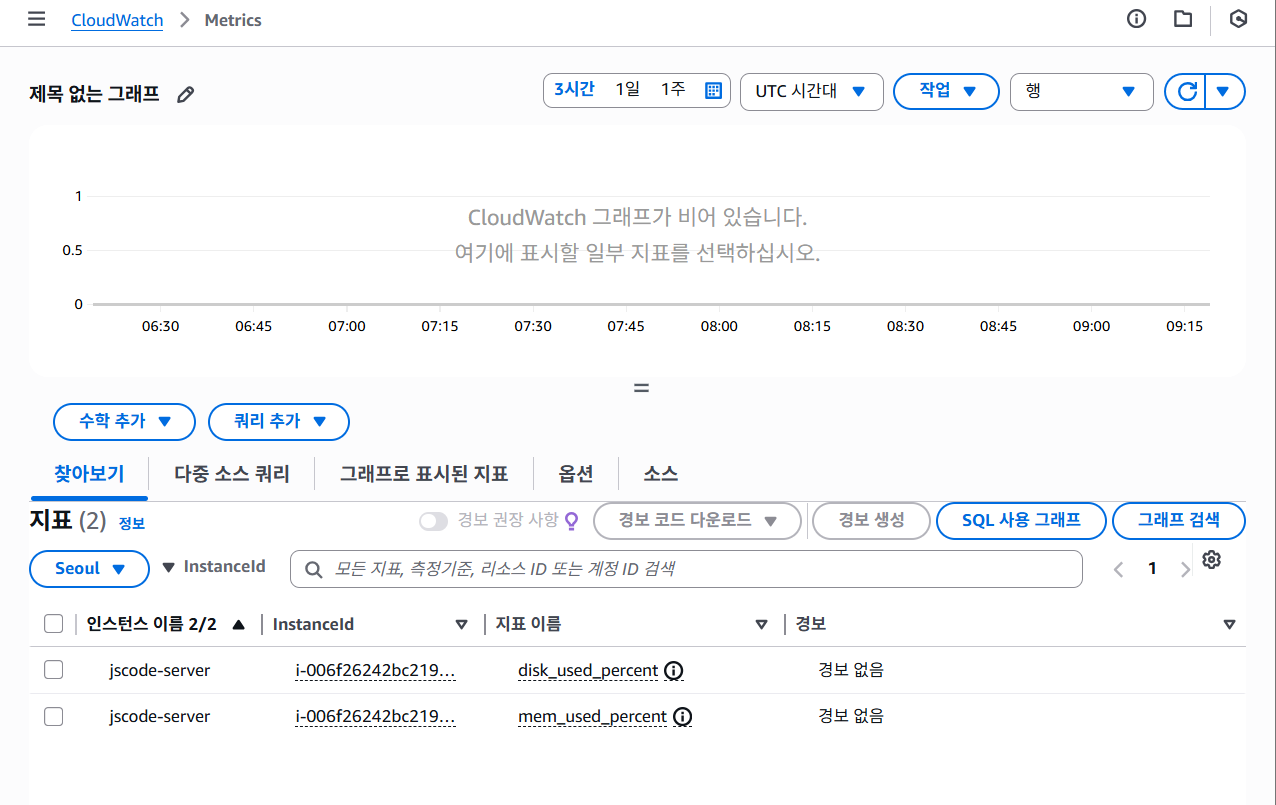
RDS 의 경우 인스턴스 내 모니터링 화면에서 볼 수 있다!
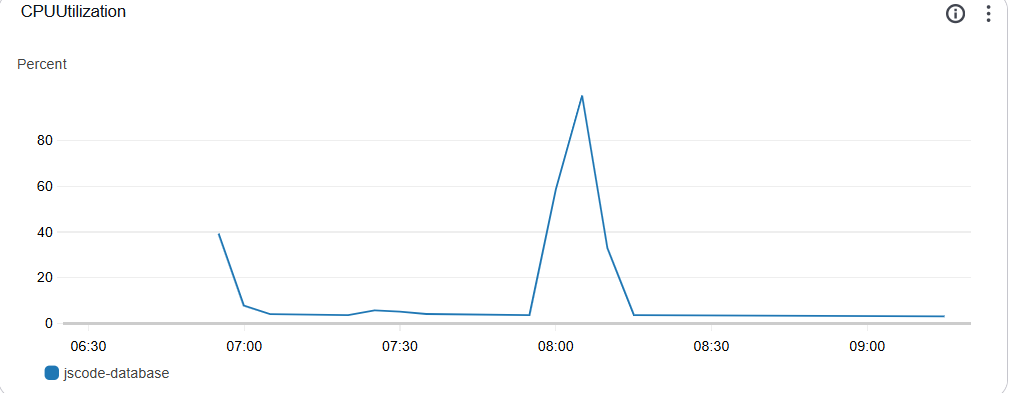
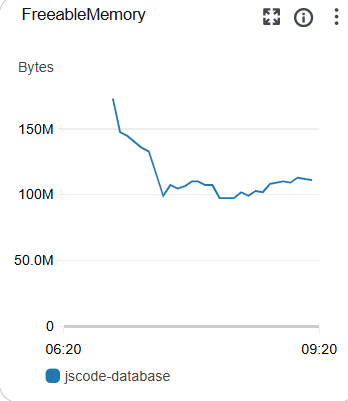
ELB의 경우 AWS 측에서 초당 수 백만 개의 요청을 처리할 수 있도록 세팅해서 ELB 때문에 성능 저하가 일어날 일은 거의 없음
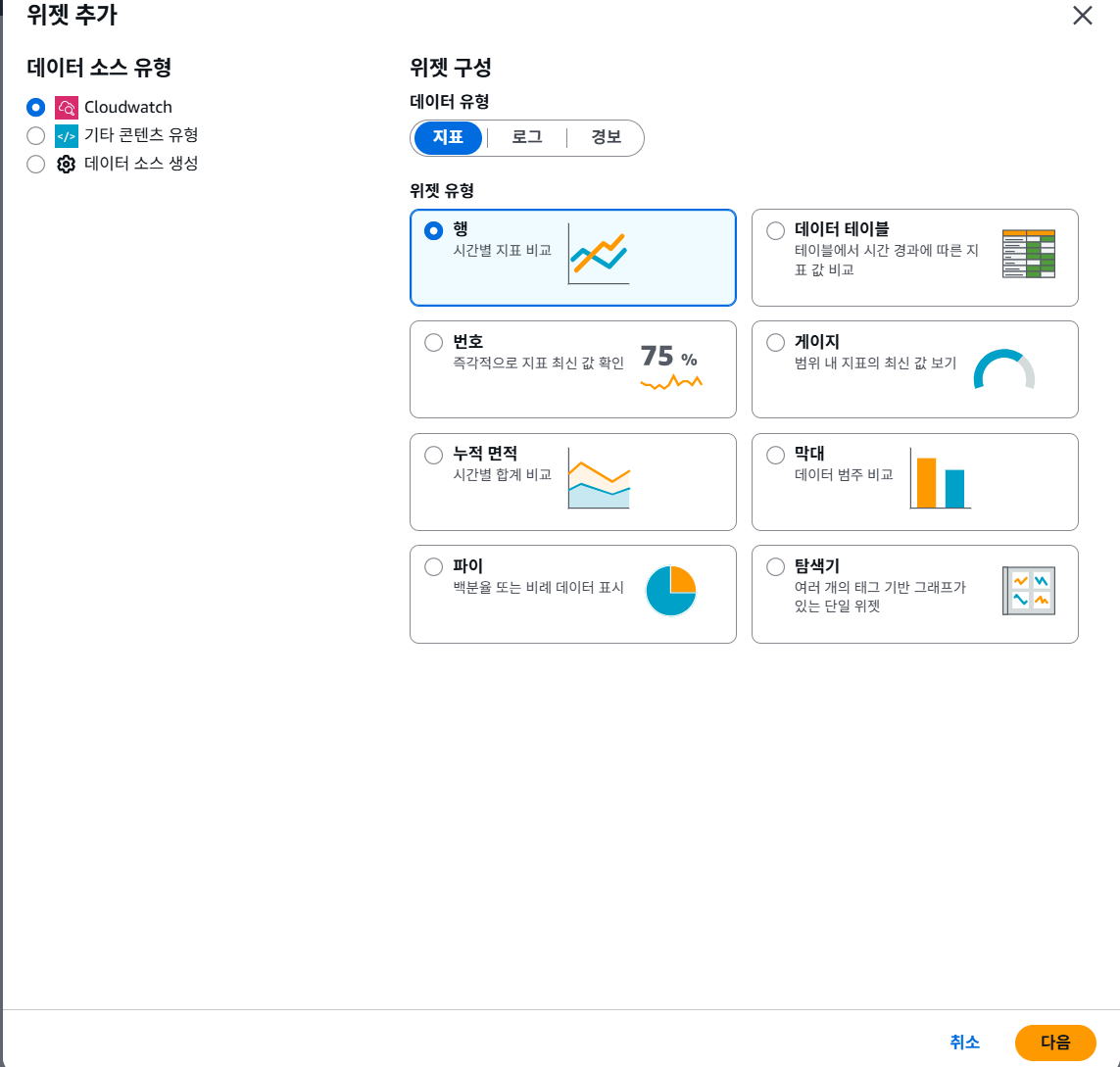
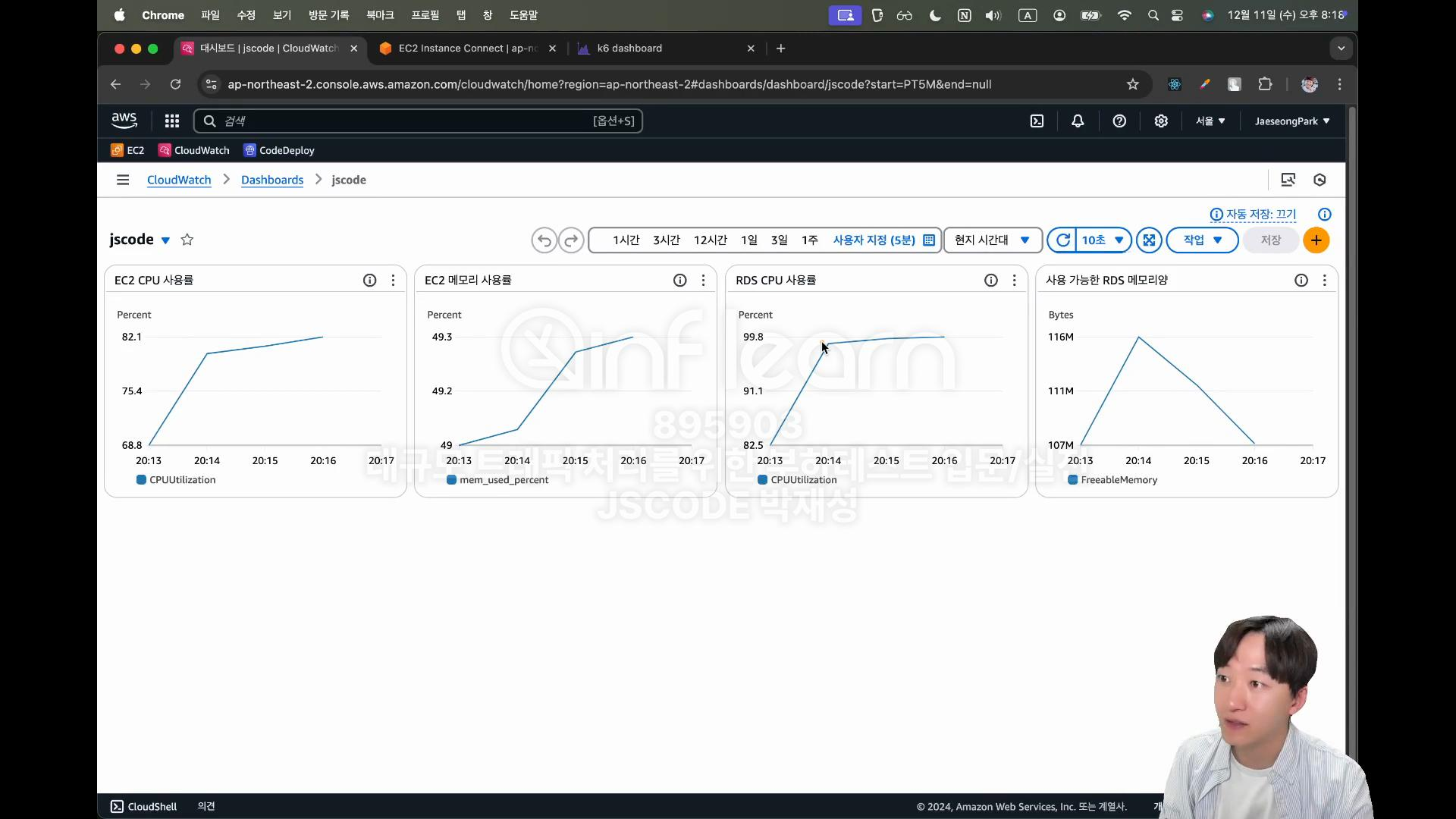
한 눈에 보기 위해 CloudWatch 에서 대시보드 생성하기
CloudWatch 내 대시보드 생성 들어가서 '행' 선택
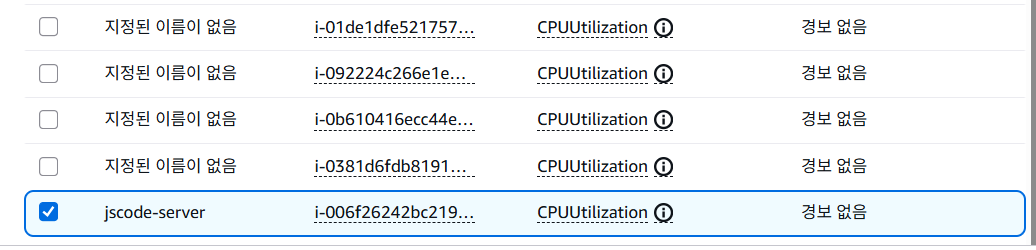
'지표 그래프 추가' 에서 cpuutilization 검색 후 아래 선택 (memory 는 mem_used_percent 선택. RDS 는 DB Instance Identifier 선택 후 cpuutilization, FreeableMemory 선택)
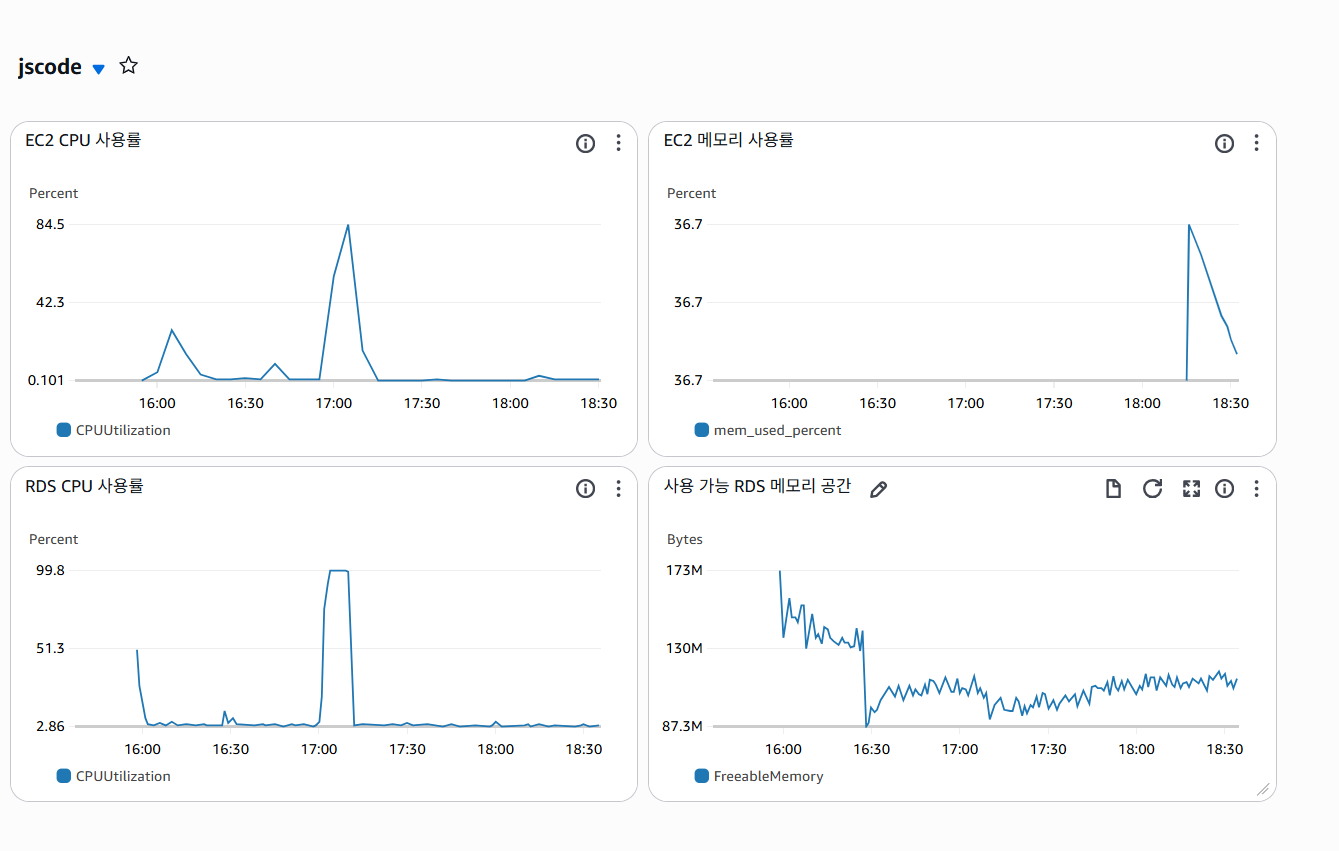
(내 쪽은 아직 테스트 진행중...) 아래를 보면 RDS CPU 의 사용률이 100프로인 것을 보아, 병목 현상이 일어나는 이유는 RDS CPU 의 사양이 부족해서임을 알 수 있다!
EC2 에서는 top 명령어를 통해 실시간으로 cpu 및 메모리 모니터링이 가능하고, RDS 의 경우 다음 순서로 가능하다
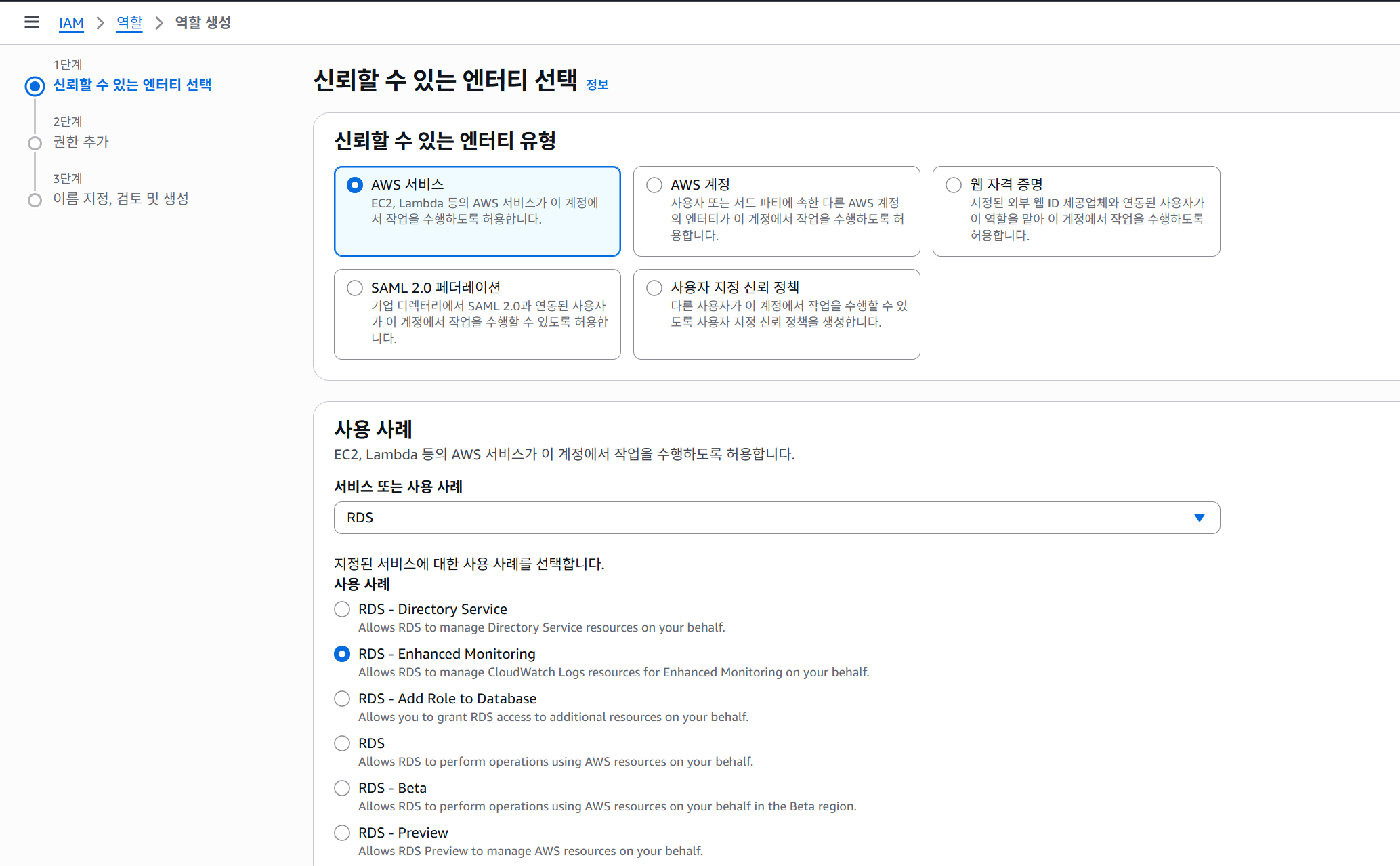
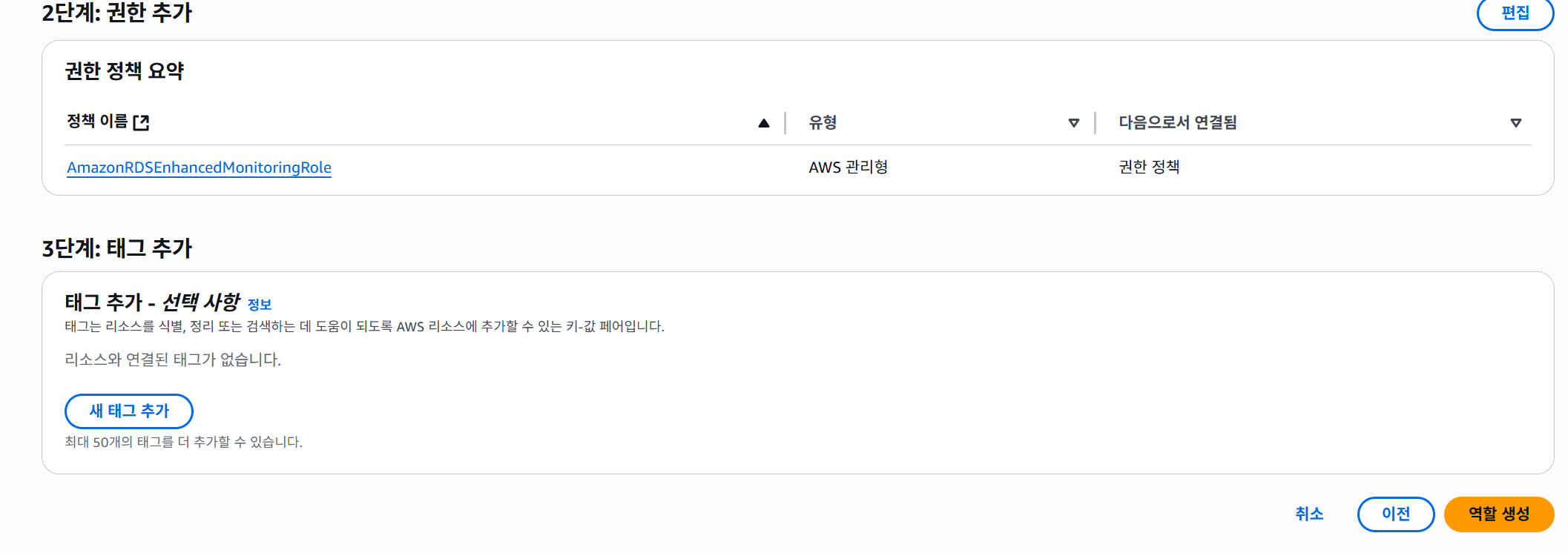
RDS 수정 후 다음처럼 선택
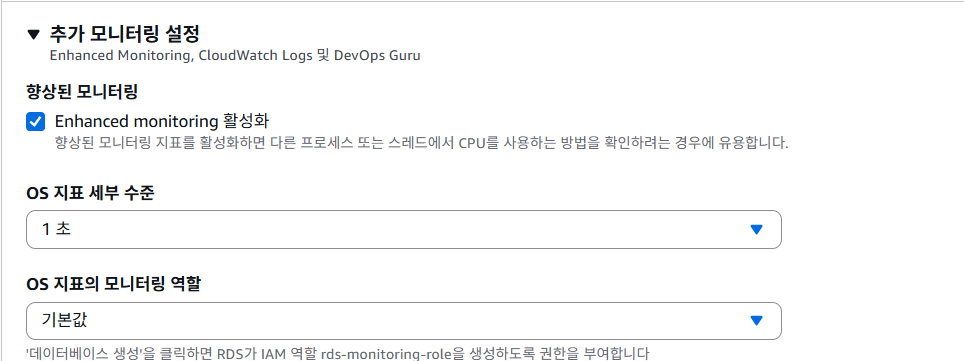
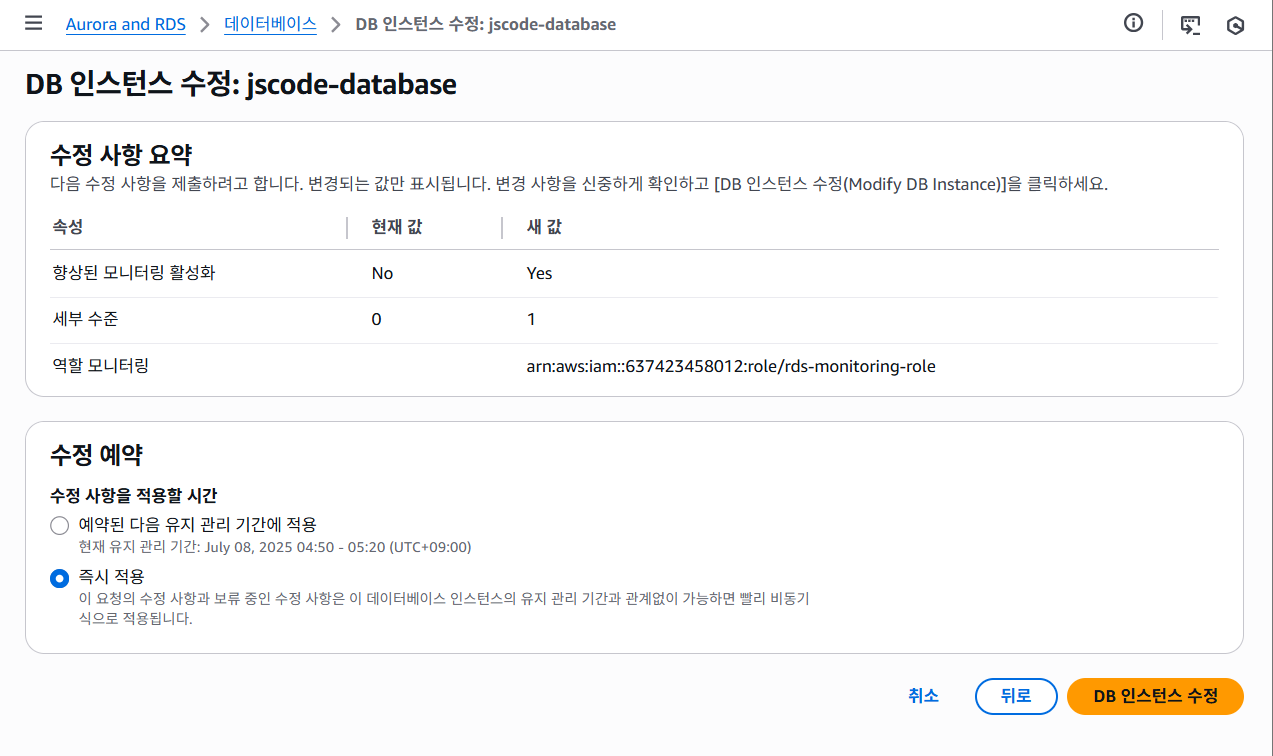
설정값 반영 이후 rds 내 모니터링 탭에서 실시간 확인 가능
출처
대규모 트래픽 처리를 위한 부하테스트 입문/실전 강의 | JSCODE 박재성 - 인프런
JSCODE 박재성 | 비전공자 입장에서도 쉽게 이해할 수 있고, 실전에서 바로 적용 가능한 '대규모 트래픽 처리를 위한 부하테스트 입문/실전' 강의를 만들어봤습니다!, 🤬 에라이, 못 해먹겠네!비전
www.inflearn.com
'k6' 카테고리의 다른 글
| 3. 병목 지점 해결 후 성능 개선하기 (0) | 2025.07.03 |
|---|---|
| 1. k6 기초 사용 및 통계분석 (0) | 2025.05.10 |